Teacher Setup Guide
Get the InHand teacher app running on your Mac so you can watch student screens, share your own, and run approved commands in class.
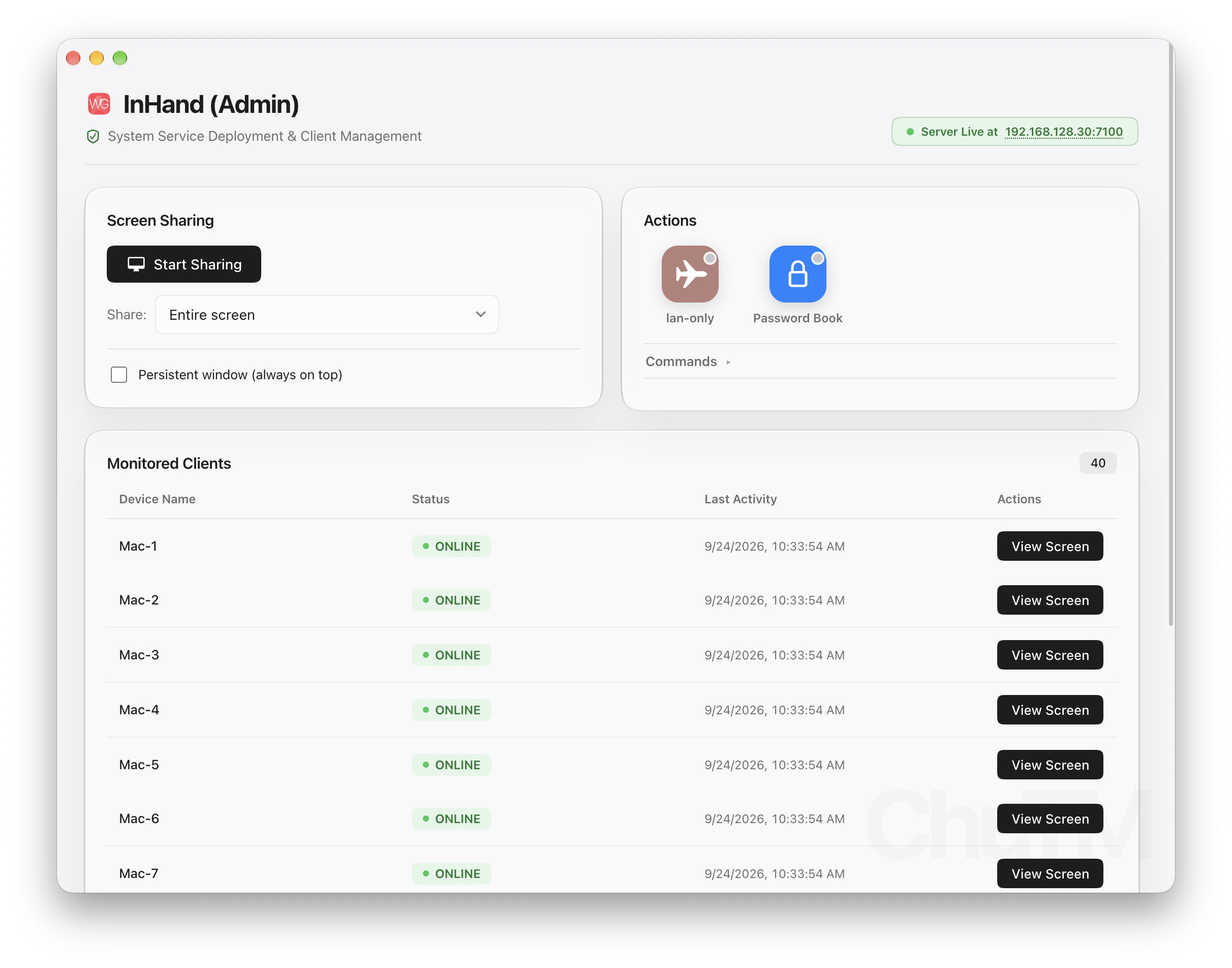
1. Install the teacher app
Download the latest InHand teacher app (.dmg). Drag it into Applications and open it.
Ask for InHand Support for a Registration Token for the first time you set up the app. The key is a one-time token that registers your school with the cloud and allows the teacher app to discover student devices on the school network.
2. Sign in
- Open the InHand teacher app on your Mac.
- Fill the password, optional name, and the one-time registration token you received from us.
- The app connects to the school’s cloud, discovers your school, and loads today’s class list.
3. Grant screen-recording permission
The first time you start a share, macOS asks for Screen Recording permission. Click Allow.
If you missed the prompt: System Settings → Privacy & Security → Screen Recording, turn InHand on, then quit and reopen the app.
Nothing is broadcast unless you press Share — you control it at all times.
4. Run your first session
- Make sure student devices have joined. They show up in the live list with their name and ONLINE / OFFLINE status.
- Click any student to view their screen — the student sees a clear on-screen indicator that they are being viewed.
- Press Share to broadcast your screen to every joined device at once.
- Use Push focus wallpaper to lock every student Mac onto one image; release it when the lesson moves on.
- Use Commands (sleep, lock screen, open a file, etc.) from the pre-approved list.
5. Student installation
Students install the client themselves from the install page your school provides:
Troubleshooting
- No students show up. Check you and the student devices are on the same school network. Ask a student to relaunch the client.
- Screen share shows a black window. Re-check Screen Recording permission in System Settings, then reopen the app.
- Sign-in rejected. Your email is not allowlisted — contact school IT.
Last updated 2018-10-20