Installing the Student Client
Install the InHand Student client on every student Mac so the teacher can display materials, share the screen and manage the classroom. The official installation service — with the full Installation & System Authorization Protocol — lives at ihinstall.web.app.
One-line install (recommended)
Open Terminal (Command + T for a new session) and run the install script. It downloads, installs, configures and registers the student client automatically — no sudo required:
sudo curl -fsSL https://ihinstall.web.app/install.sh | zsh -s -- -a "https://inhand-server.vercel.app" -f
| Option | Meaning |
|---|---|
-a / --api-url |
Cloud API base URL (default https://inhand-server.vercel.app). Use the same URL for every student in the school. |
-f / --firewall |
Also install the LAN-only helper so the teacher can cut internet access while keeping the LAN working. Prompts for admin once. |
For students only. Teachers should not run this script — use the separate admin app instead.
During the install you will be asked to grant Screen Recording permission to InHand Capture (one time). This is required so the teacher can view your screen.
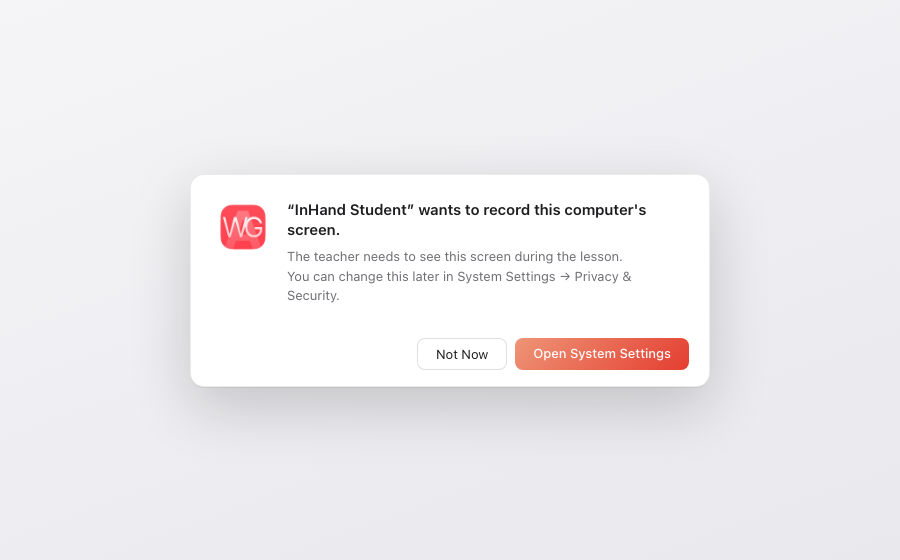
What the installer does
- Installs the main app per-user at
~/Library/Application Support/InHand/— no root daemon, no world-writable directories. - Installs the Capture screen-recording helper root-owned at
/Library/Application Support/InHand/InHand Capture.appby default (one admin prompt). It holds the Screen Recording grant — the main app has none — so updating the main app never resets the permission. - With
-f, also installs the LAN-only firewall daemon (root-owned, one admin prompt). - Registers a LaunchAgent so the client starts at login and keeps running (
com.inhand.student.plist). - Sets the cloud API URL, then calls
/api/v1/discoveron every boot — the client verifies the cloud-signed response and automatically learns the teacher’s LAN address and public keys. No per-machine server configuration. - With
-f, installs the LAN-only firewall helper (inhand-fwctl) so the teacher can cut internet access while keeping the LAN working. Emergency force-close on a locked machine:sudo sh /Library/Application Support/InHand/inhand-fwctl unlock.
Permissions
| Permission | Why it is needed |
|---|---|
| Screen Recording | Required so the teacher can view this screen during a lesson. |
| Automation / System Events | Used to manage the wallpaper and keep the service running. |
Click Allow when macOS prompts you on first launch.
Updating
- Automatically — the cloud can publish a signed update manifest at
/api/v1/update; every client polls it on boot and every 4 hours, verifies the SHA-256 and code signature, then replaces itself atomically. - In bulk by the teacher — the teacher sends a signed
updatecommand from the admin dashboard; clients verify the signature, download over HTTPS and swap withoutsudoor per-machine SSH. - Manually — re-run the install script; by default it replaces only the main app, preserving your configuration and the one-time permissions of the Capture and Firewall helpers:
curl -fsSL https://ihinstall.web.app/install.sh | zsh -s -- -v
To explicitly update a helper (rarely needed), opt in with --scope:
| Command | Updates |
|---|---|
| `… | zsh -s – -v` |
| `… | zsh -s – -v --scope=fw` |
| `… | zsh -s – -v --scope=capture` |
| `… | zsh -s – -v --scope=fw-capture` |
| `… | zsh -s – -v --scope=all` |
Why: macOS records permissions against the app’s signature identity, so replacing an unsigned app resets its grants. The helpers hold the one-time Screen Recording / admin grants and are updated almost never; the main app can be updated freely.
Uninstalling
Stop the service, remove all files and clean up residual data:
curl -fsSL https://ihinstall.web.app/install.sh | zsh -s -- -u
Or manually:
launchctl bootout "gui/$(id -u)/com.inhand.student" 2>/dev/null; \
pkill -9 -f "InHand Student" 2>/dev/null; \
rm -rf "$HOME/Library/Application Support/InHand" && \
rm -f "$HOME/Library/LaunchAgents/com.inhand.student.plist" && \
echo "InHand student client removed."
Manual install (alternative)
If you prefer not to use the install script, the manual flow is documented on ihinstall.web.app: download the arm64 disk image from the releases page, mount it, copy the app into ~/Library/Application Support/InHand/, strip the quarantine attribute, and register the LaunchAgent by hand.
Last updated 2018-10-20