How we protect your data
InHand is designed around one idea: the classroom should work over the school’s own network, with the smallest possible amount of data leaving it. This page explains, in plain language, how your data is protected while you use InHand. The full legal statement is in our Privacy Policy.
1. Data minimisation
We only collect what the software needs to run:
- Your registration — the school’s name and public key, stored once when the school registers.
- Session metadata — which class was connected and for how long, kept in the audit log.
- Support data — crash reports and diagnostic logs, only if you choose to send them.
No wallpapers, no browsing history, no documents are uploaded to the cloud. Classroom content stays on the school network.
2. Encryption
| Layer | Protection |
|---|---|
| Device to device | Teacher and student apps communicate using public-key cryptography (ECIES encryption with Ed25519 signatures). A student device only accepts a teacher it can verify. |
| Device to cloud | All cloud traffic goes over HTTPS with modern TLS. |
| Cloud discovery | The cloud signs every discovery response. A client verifies the signature before trusting the teacher’s address and public keys — no manual server configuration on each machine. |
| Private keys | School and signing keys never leave the server or your device. |
3. Screen sharing stays under the teacher’s control
- Nothing is broadcast unless the teacher starts a share and chooses the window or display.
- Sharing is designed for the school LAN — the content does not travel over the public internet.
- The teacher can end the share or exit focus mode at any time; student devices return to their normal state automatically.
4. Tamper-proof updates
Every update is verified before it runs:
- The client downloads the new version over HTTPS.
- It checks the SHA-256 hash and the code signature.
- Only then does it atomically replace its own app.
A student client can never be tricked into running a modified binary, whether the update comes from the teacher or from the cloud.
5. Sign-in and access control
- School registration uses a one-time token; one public IP is one registration.
- The audit log records every privileged action — who did what, and when.
6. Minimal privileges on student devices
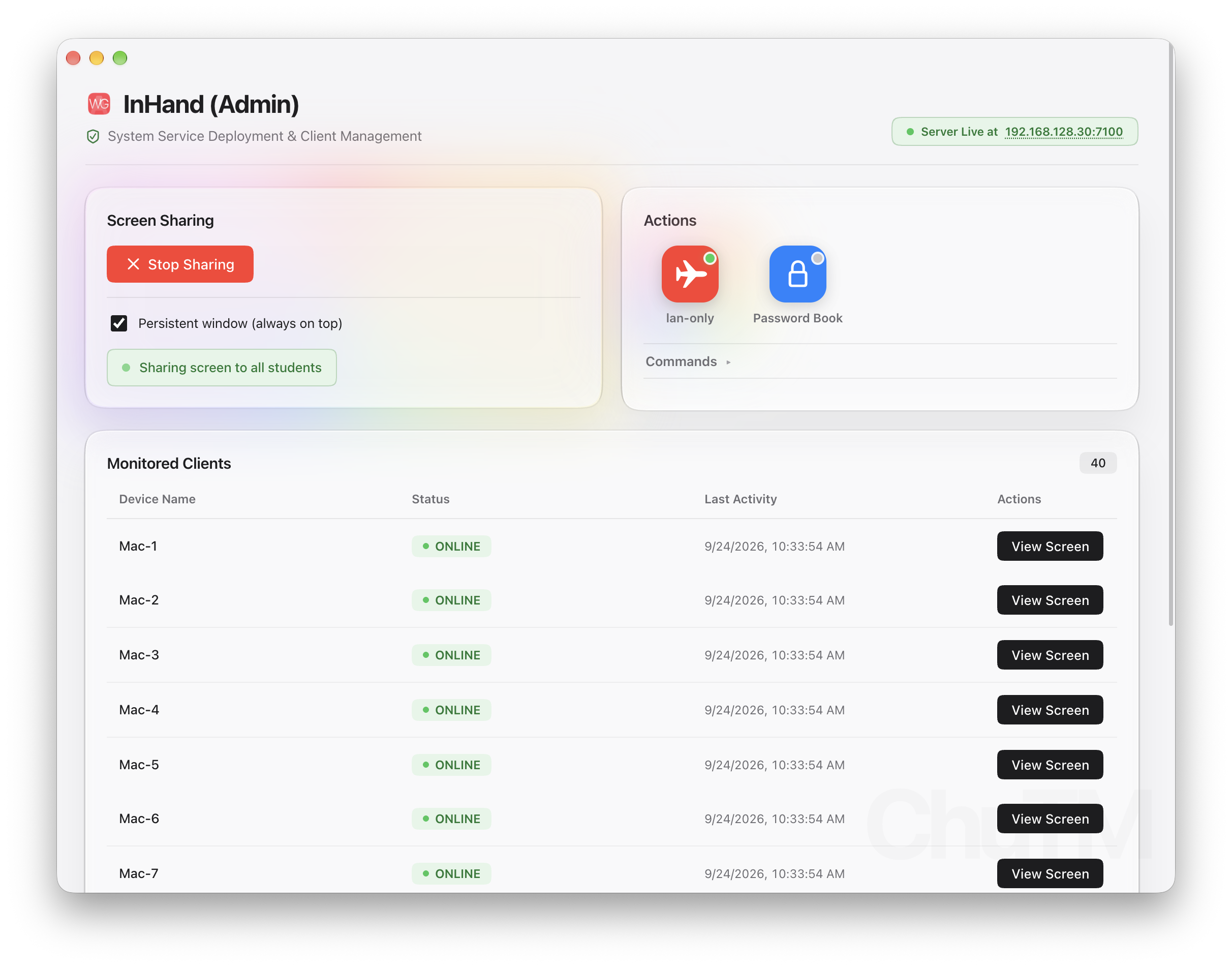
The student client’s main app is installed per user (~/Library/Application Support/InHand/) with no root daemon and no world-writable directories. Two optional helpers are installed root-owned under /Library/Application Support/InHand/ — the Capture screen-recording helper and the firewall daemon — which students cannot remove. Screen Recording permission is requested once (to the Capture helper) and is required only so the teacher can view the screen during a lesson; you can revoke it in System Settings at any time. Because updates default to replacing only the main app (install.sh -v), the helpers’ one-time grants are never reset by updates.
7. Where your data lives
- On the LAN — lesson content, screen shares and wallpapers move between the teacher’s Mac and the student devices on the school network.
- In the cloud — only registration, discovery and signed update metadata. The cloud cannot see your screen.
- On your device — all configuration and keys stay in your user folder.
8. Retention and your rights
We keep session metadata only as long as needed for the service and the audit log. Under the Personal Data (Privacy) Ordinance (Cap. 486), you may request access to and correction of your personal data — see the Privacy Policy for the full details, including how to contact our privacy officer.
A practical rule: if a lesson does not need to leave the school network, it does not leave it. InHand is built to keep classroom data local by default.
Last updated 2018-10-20